Connecting a Facebook lead form (Facebook Lead Ads)
A direct connection between your Facebook and Instagram lead forms and TasKey. How to connect, how to map the form's questions, and how every lead arrives with the campaign, audience and ad name. Plus an alternative through Make.
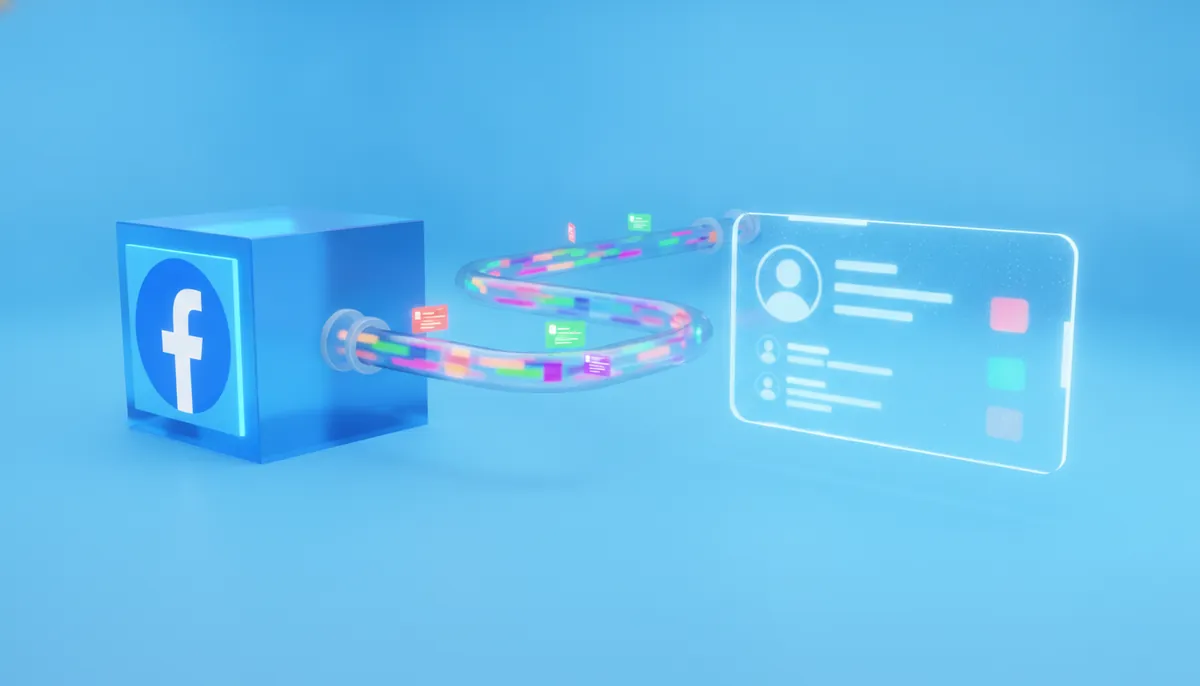
Someone filled in a lead form on your Facebook or Instagram ad? With the direct connection they open as a lead in TasKey right away - no copying and no Make. If you save a mapping for the form, the lead also arrives with the campaign name, the audience and the ad, so you know which ad brings in customers.
About the screenshots: The screenshots show the Hebrew interface. Button and field names are given in English, with the Hebrew label in parentheses so you can spot them on screen.
The direct connection is still in beta, and isn't open in every account. It's opened for each account separately, through our support team. Until it's opened for you, the Facebook card on the System connections screen is marked Beta, says In testing and Contact support to open it, and can't be clicked. Want to receive Facebook leads right now? Connect the form through Make. It's available in every account: see section 11 and Connecting new leads from Make to TasKey.

What you need for the direct connection:
- A Facebook business page, and a Facebook user who manages it.
- A lead form (Instant Form) on the page, usually as part of a leads campaign.
- The direct connection opened in your account (see above).
- The account manager user in TasKey. Only they can open the connection settings, even after it's opened.
1. Open the Facebook card
- Click Settings (הגדרות) in the top bar, and choose System connections (חיבורים למערכות).
- In the Marketing (שיווק) group you'll find the Facebook card. Once support has opened the connection, the card is green and says Active (פעיל). Not connected to Facebook yet? It says Not connected (לא מחובר) underneath.
- Click the card. The Facebook settings (הגדרות פייסבוק) screen opens.

The card is still marked beta? The connection hasn't been opened in your account yet. Contact support - meanwhile you can receive the leads through Make (section 11).
2. Log in to your Facebook account
- On the Facebook settings screen, the Enable Facebook connection switch is already on. Don't turn it off: turning it off locks the card, and reopening it requires contacting support.
- The Connection status card says No Facebook account connected. Click Log in to a Facebook account (התחברות לחשבון פייסבוק).

- In Facebook's window, log in with the user who manages the business page.
- Choose the pages you want to receive leads from, and approve every permission Facebook asks for.
- You return to TasKey, to the Facebook connection succeeded! screen. The system syncs the pages, forms and leads in the background.
- When it's done, the system takes you to Facebook settings. Don't want to wait? Click You can leave this page, and the sync continues in the background. The Connection status card shows the connected account and the pages that were connected.
Don't skip any permission. Without the
pages_manage_adspermission, Facebook doesn't return the lead forms of any page. Removed a permission? Click Reconnect (התחברות מחדש) and approve everything.
What does the first connection bring in? For each form, the system also pulls the leads already in it. They come in with the lead source Facebook, but without a campaign or ad name, because you haven't saved a mapping yet. So: right after connecting, save a mapping for every form (sections 3 to 6). Leads pulled this way don't run triggers, so old customers don't get messages.
3. Get to a form's mapping
Every form has its own mapping. Here's how to get to it:
- On the Facebook settings screen, next to the connected account, click Manage pages and lead forms (ניהול דפים וטפסי לידים).
- In the Connected Facebook pages card, next to the page, click Manage lead forms (ניהול טפסי לידים).
- In the Page forms list, click the form's name.

Created a new form on Facebook after connecting? Click Sync forms from Facebook (סנכרן טפסים מפייסבוק) so it appears in the list, then map it. Until then its leads come in without a campaign or ad name. Changed questions in an existing form? The same button also updates the questions, and the saved mapping stays.
4. Map the form's questions
The Field mapping (מיפוי שדות) screen opens with the form's name in the title. In the Assign form questions to lead columns card, each question from the form appears on one side, and on the other you choose which lead field it goes into.

- For a form that hasn't been mapped yet, the system suggests an assignment for the familiar questions: full name, phone, email and city. The full name goes into the First name (שם פרטי) field, which is shown as the customer's name.
- A question of your own, like "What's your line of business?", appears with Not assigned (ללא שיוך). Choose a custom field for it, or Notes / description. A question without an assignment isn't saved on the lead.
From which date to sync leads sets how far back to pull leads that are already in the form when you click Pull leads (משוך לידים) in the forms list: From now on, One month back, Two months back or 3 months back. New leads always come in in real time, regardless of this choice.
5. The campaign, audience and ad name
Beyond the questions, Facebook attaches fixed details to every lead: which campaign, ad set and ad it came from, and on which platform the form was filled in. They appear in the Facebook built-in fields card.

For a form that hasn't been mapped yet, the system already picks this assignment:
| The Facebook field | Goes into | Where you see it |
|---|---|---|
Campaign name (campaign_name) | Campaign (קמפיין) | The Sources (מקורות) tab, and a column in the table |
Ad set name (adset_name) | Audience (קהל) | The Sources tab |
Ad name (ad_name) | Ad (מודעה) | The Sources tab |
Platform (platform) | Contact channel (ערוץ התקשרות) | The Sources tab: fb or ig |
You can also add Audience and Ad as columns in the leads table (section 7). You can change any assignment, for example put the ad name into a custom field. The campaign ID, ad ID and form name are also available for assignment, if you want them.
The order of steps that brings the campaign and ad name to every lead:
- Connect to Facebook (section 2).
- Open the form's mapping (section 3).
- Check the assignment in the Facebook built-in fields card.
- Click Save mapping (שמירת מיפוי) (section 6), and wait for ✓ Saved successfully.
- From here on, every new lead from the form opens with the campaign, audience and ad.
- Repeat steps 2 to 4 for every form, including every new form.
The assignment on screen is only a suggestion until you click Save mapping. A form with no saved mapping brings in leads with the lead source Facebook only - no campaign, audience or ad. Leads that already came in aren't updated after you save. Need to fix a specific lead? On the lead card, in the Sources tab, click Edit lead source (ערוך מקור הגעה).
6. Fixed values and saving the mapping
In the Additional fixed values card you set a value that goes into every lead from this form. By default it shows Lead source (מקור הגעה) with the value Facebook.

- Want the lead source to be called the same as in the rest of your leads (for example "פייסבוק")? Write that instead of Facebook. That way the reports by lead source will group all your Facebook leads together.
- Add fixed value adds a row, for example a product name in a custom field, or a fixed Campaign for a form that comes from one place. A fixed value takes precedence over what came from Facebook for the same field.
When you're done, click Save mapping. ✓ Saved successfully appears next to the button.
Want to make sure? Open the form's mapping again. The assignments and fixed values appear as you saved them, and in the Facebook built-in fields card, Not assigned should not appear next to Campaign name, Ad set name and Ad name.
7. Where you see the campaign data on the lead
Open the lead card and go to the Sources (מקורות) tab. The Latest lead source table shows Lead source, Campaign, Audience, Ad and Contact channel.

- View ad (צפייה במודעה) appears on leads from the direct connection, and shows the actual ad the lead signed up through.
- Edit lead source is available to users with permission to see all leads.
- In the profile on the side of the card, under Lead sources, the campaign, audience and ad are shown in short.
In the leads table, the Campaign column is shown by default. You can add Audience and Ad as columns and filter by them. See Showing campaign, audience and ad as columns.
8. Check that the connection works
- Fill in the form yourself, or create a test lead with Meta's tool, the Lead Ads Testing Tool.
- In TasKey, on the Manage pages and lead forms screen, check the Webhook status — real-time lead intake card. Every request from Facebook is recorded there with the time and the result, for example Lead saved or Duplicate (skipped).
- The lead appears in the leads table, and also in the Recent leads tab on the form's mapping screen.
A test lead arrives without a campaign and ad. It wasn't created from an ad, so it has no campaign or ad name. The same goes for a lead who filled in the form directly from the page. The first lead that comes from a real ad will arrive with the names.
9. Rep assignment and an automatic message for a Facebook lead
A new lead that comes in from the direct connection in real time goes through the same intake as a lead from a website form:
| What | What happens |
|---|---|
| Rep | If you turned on automatic rep assignment, the lead is assigned by lead source (Facebook, or whatever you wrote in the fixed values) or by campaign. Otherwise it comes in without a rep |
| Notifications | A new-lead notification on WhatsApp, by email and on Telegram, and a push in the app, according to your settings. See Notifications |
| Blacklist and spam | When Enforce the list on incoming leads is on, a number you marked Block as incoming lead doesn't open as a lead (also during a sync), and the block is recorded in the block log. See Blacklist and spam filtering |
| Triggers | Triggers of the Lead from API (ליד מ-API) type run on the lead |
Assigning by campaign? Save a mapping for the form (section 5) so the campaign name goes into the Campaign field. Without a mapping the field is empty, and assignment can only be based on the lead source.
Need a different distribution, or a first message to the customer? Do it with triggers:
- Create a trigger of the Lead from API type. Every new lead from a Facebook form runs it, just like a lead from a website form (when a trigger runs).
- Add an Assign rep (automatic distribution) action: in rotation, to the rep with the fewest active leads, or always to the first on the list.
- Want to answer the customer right away? Add a Send WhatsApp action with a welcome message.
- A different rep for each form or each campaign? Add a condition to the action, for example by the Facebook lead form field.
When are there no assignment, notifications and triggers? For leads pulled in a sync: on the first connection, after Reconnect or Connect another Facebook account / refresh, and with the Pull leads button. Also for a lead created on Facebook more than 24 hours ago, and for a lead with the same phone that already came in within the last 15 minutes. In the last two cases the webhook status records Triggers not run.
10. Common problems
The connection expired
On the Facebook settings screen the account is marked in red: Connection expired - please reconnect, with the reason. This happens, for example, when you change your Facebook password or remove a permission.
- Click Reconnect and log in with the same Facebook user who manages the pages.
- The pages, forms and saved mappings stay. The sync after logging in also pulls the leads that piled up in the meantime.
The same alert also appears on the Facebook card on the System connections screen: Connection expired · please reconnect.
Leads aren't arriving
- Open Manage pages and lead forms and check the Webhook status. No rows at all? The leads aren't leaving Facebook for TasKey. A row with an error, for example Missing token? Reconnect.
- In the Connection permissions card on the same screen, make sure no permission is missing.
- Make sure the form's page appears in Connected Facebook pages. A page is missing? Reconnect, and select it too in Facebook's window.
- Check in Facebook's lead access settings that lead access is set to the default. This is how it should look:

If access was changed and there's a problem receiving leads, click Restore default access?:

The lead arrived without a campaign or ad name
Check in this order:
- Was the form's mapping saved? Open it (section 3) and click Save mapping. New leads will arrive with the names; old leads won't be updated.
- Did the lead come in before you saved? For example on the first connection. It stays without the names. Fix it with Edit lead source if needed.
- Are the built-in fields assigned? In Facebook built-in fields, Not assigned should not appear next to Campaign name, Ad set name and Ad name. It does? Choose Campaign, Audience and Ad and click Save mapping. If after saving and reopening it still shows Not assigned, or an error appears next to the button, contact support.
- Did the lead come from an ad? A test lead, or a lead who filled in the form directly from the page, arrives without a campaign and ad.
- Did the lead come through Make? There you need to map the fields in the TasKey module (section 11).
11. Alternative: Facebook forms through Make
You can also receive leads from Facebook forms through Make. This suits cases where the lead also needs to go through other systems. A Make account, installing the TasKey app and filling in the Add lead module are explained in Connecting new leads from Make to TasKey. What's specific to Facebook:
- In the scenario, the first module is Facebook Lead Ads, with the New Lead trigger.

- In the module's webhook window, choose the Facebook connection, the page and the form, and click Save. Every new form needs to be connected this way again.

- In TasKey's Add lead module, map the marketing fields: Campaign name to the Campaign field, Adset name to the Audience field, Ad name to the Ad field. In the lead source write "Facebook" (or the same label your other Facebook leads use).

- Click Run once, send a test lead, and check it in the Sources tab of the lead card.
Choose one route per form. A form connected both directly and through Make reaches TasKey twice. That creates duplicate leads, or the same lead is updated again as an existing lead (a lead that already exists).
Make's connection to Facebook was disconnected
After a Facebook password change, the connection in Make may stop working:
- Open the scenario. A red exclamation mark or a yellow triangle on a module shows where the problem is. Click it to see the details.

- If the problem is the Facebook connection, go to Connections, click Reauthorize and then Verify, and log in to the Facebook account.

- Go back to the scenario, turn it on and click Process Old Data. The leads that piled up since the scenario stopped will come into TasKey. Their number is shown on the side of the screen.

Need to pull old leads from a form that wasn't connected? See Adding Facebook leads with List Leads.
FAQ
Does the Facebook connection cost money? The connection to Facebook forms is included in every plan, already in the Basic plan (pricing). The direct connection is opened during the beta through support, and Make is available in every account. You pay Facebook for the campaigns themselves.
Can I connect several pages? Yes. Every page you chose in Facebook's window is connected, and every form has its own mapping. You can also connect another Facebook account, with the Connect another Facebook account / refresh button on the Facebook settings screen.
Do leads from Instagram ads come in? Yes. The lead form of an Instagram ad belongs to your Facebook page, and is received through the same connection. After you save the mapping, the Contact channel field will show the value ig.
I changed the mapping. Will the old leads be updated? No. The mapping applies only to leads that come in after you save.